
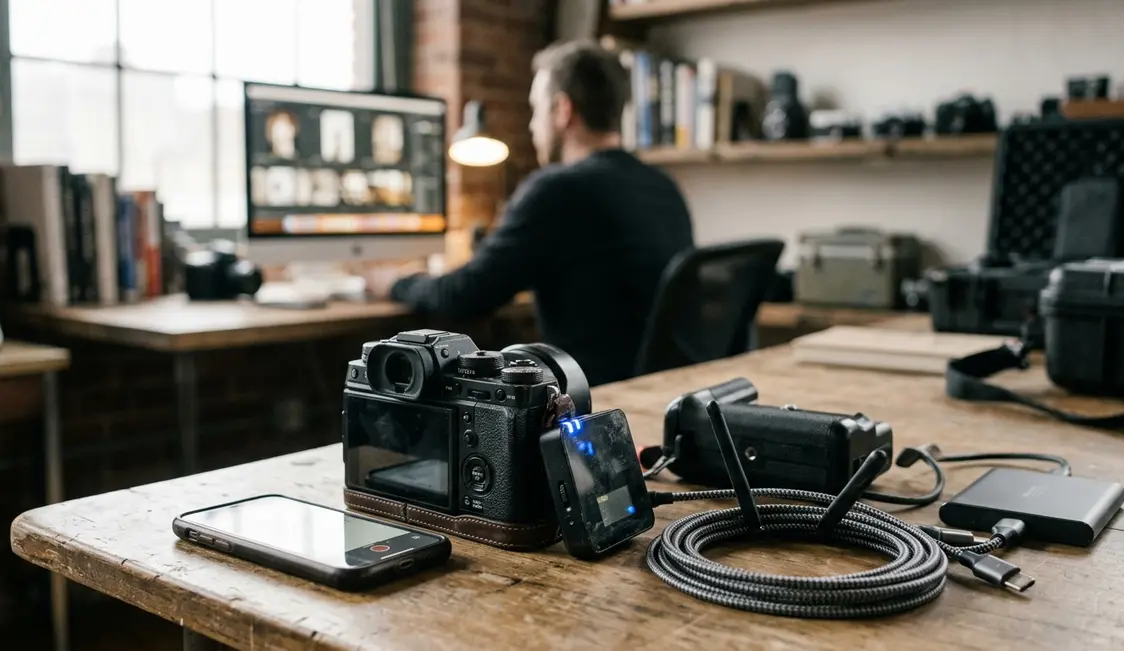
Wireless Tethering Is a Live Radio Path
A location tether begins the moment the shutter closes. The camera writes the capture, its radio sends a file or designated preview across the selected network, and the tablet app renders the result. That sequence turns an apparently simple connection into a chain with identifiable parts.
The Four-Part Connection
The minimum working chain consists of the camera radio, a named SSID, a network password, and a compatible receiving app. A fifth setting governs continuity: the power policy must keep the radio awake between frames. If any component changes, the preview path can stop even while both screens still appear active.
This definition matters on location because the second screen carries operational weight. A client uses it to judge expression and styling. A workshop attendee uses it to connect camera settings with the resulting frame. In either case, wireless tethering serves as live evidence of the photograph rather than a studio convenience.
Three-Frame Proof
Confirm the route with three consecutive captures spaced five to ten seconds apart. All three should arrive without waking the tablet, reopening the app, or approving the camera again.
Distance, People, and Heat Weaken the Camera Radio
A mirrorless camera carries a short, low-power Wi-Fi link into an environment filled with competing signals. The tablet may move down the set. Phones advertise hotspots. Direct sun warms the body while live view and file transfer remain active.
Inspect the Set Before the Menus
Start with the physical route. Note where the tablet will stand, who may cross between the devices, and whether the photographer’s hand shields the camera antenna. A person in the path can absorb and scatter radio energy, especially when the signal already passes through equipment or bodies.
A useful placement test needs only two frames: make one with a clear path, then make another while an assistant crosses between camera and tablet. A delayed second preview exposes sensitivity before a client or class gathers around the screen.
Cabled studio tethering usually benefits from a fixed workstation and steady power. A location radio has no cable boundary, yet it must contend with movement, battery limits, weather, and crowded 2.4 GHz traffic. Its most visible failure is the frozen last frame: the photographer continues shooting while everyone else studies an image that is already obsolete.
Choose the Network Topology Before Powering the Camera
Should the camera create the network, join a phone, or connect through a pocket router? The answer follows from the number of viewers and the way the set will move.
Three Paths Through the Set
- Camera access point: The camera creates the SSID and a nearby tablet joins it. This route has the fewest dependencies and suits one receiver kept close to the tripod.
- Phone hotspot: The camera and tablet join the phone’s network in station mode. The arrangement can support a mobile internet connection, though it also draws on the phone battery and shares the device’s radio workload.
- Pocket travel router: Both endpoints join a fixed SSID supplied by the router. This topology helps when several tablets must remain attached to one predictable network.
Select the route before pairing. Access-point mode tells the camera to create the network; station mode tells it to join the hotspot or router. A mismatch leaves the app searching for a camera that exists on another path.
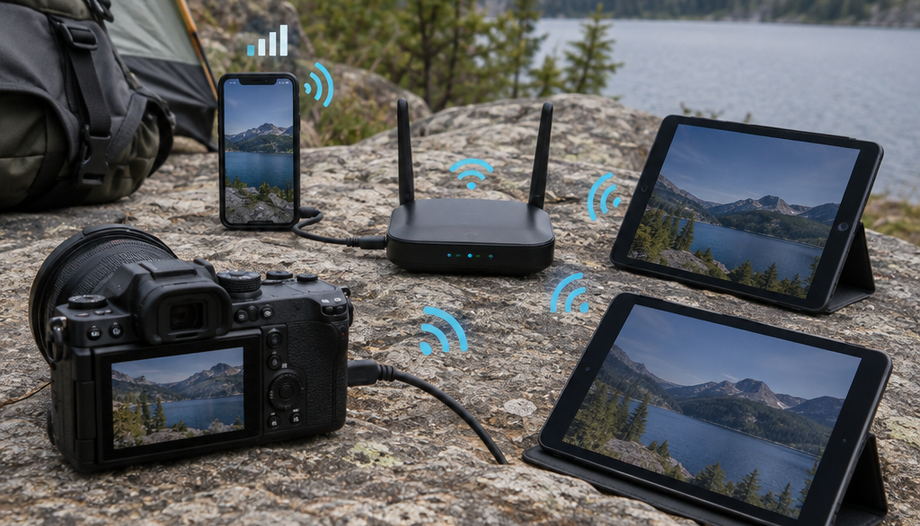
After choosing, send three test frames, lock and wake the tablet once, and verify that it returns to the intended SSID. This guidance covers on-location stills preview and workshop viewing; proprietary FTP delivery, cloud transfer, and full cabled editing sessions follow different connection patterns.
Camera Menus Must Keep the Radio Awake
Camera setup works best in dependency order. Each successful step confirms the foundation for the next, which prevents a sleep setting from masking an incomplete pairing.
Configure the Body in Sequence
- Enable Wi-Fi or the manufacturer’s wireless function.
- Select access-point or station mode for the chosen topology.
- Create or join the SSID and enter its password.
- Authorize the tablet or receiving device.
- Select the supported still-transfer function, such as PC remote, the maker’s imaging app, or FTP where appropriate.
- Make a test exposure and confirm that it appears on the tablet.
Only then should the photographer adjust auto power-off, monitor sleep, frequency band, and power supply. Where the body permits it, set auto power-off to at least 30 minutes during an active setup or disable it temporarily. Restore the normal setting after the shoot.
Silent Radio Killers
Airplane mode can disable the required radio, while Bluetooth-only pairing may establish control without creating the Wi-Fi route needed for image transfer. Wireless sending combined with live view also drains a pack faster than a cabled studio session. A high-capacity pack, dummy battery, or supported external supply protects the connection from a low-power gate.
Check body firmware and tablet-app compatibility 24 to 48 hours before departure. Updating either component beside the tripod introduces a new variable when the working configuration should already be settled.
Bind the Tablet to One Camera Network
The tablet should join the chosen SSID through its operating-system settings before the viewing app opens. Once connected, the photographer can launch the supported app, select the camera from the device list, and complete any approval prompt displayed on the camera.
Prevent Network Roaming
A tablet may prefer a remembered café, venue, or phone network because that connection offers internet access. Forget those networks or disable their auto-join settings for the session. Keep the camera SSID selected even when the operating system reports that it has no internet connection; local file transfer does not require one.
Make a test capture, leave the system idle for 60 to 90 seconds, wake the tablet, and shoot again. The next preview should arrive without repeating the pairing process. Raise screen brightness enough for outdoor review and disable tablet sleep for the duration of the setup.
Placement matters as much as software. Set the tablet in open shade two or three paces behind the camera, then weight the stand or its base. Passing the receiver among viewers changes distance, orientation, and obstruction all at once.
Diagnose a Frozen Preview in a Fixed Order
A frozen last image calls for a short diagnostic, not a complete reset. Rebuilding the pairing too early discards useful evidence about where the path stopped.
Freeze Order
Run the first pass in under 60 seconds: confirm the tablet’s current SSID, inspect the camera’s wireless icon, check the pack warning, check the heat warning, and make one test exposure.
Separate Congestion From Heat
If the network remains visible but the file stalls, examine radio congestion. Nearby phones and hotspots often crowd 2.4 GHz. Move both endpoints to 5 GHz for a close, unobstructed path, or select another camera access-point channel. Changing only the tablet places the two devices on different routes.
Use 2.4 GHz when penetration through intervening material matters more than local congestion. Use 5 GHz when the camera and tablet remain close with a clear path.
Heat requires a different response. Live view, file writing, and radio transfer can push a mirrorless body toward temperature standby. Shade the camera, let the body idle between sequences, and drop live view when the tablet already serves as the review screen. If the camera must power-cycle, force-close the receiving app, rejoin the intended SSID, reopen the app, and send two test frames.
Keep a compatible USB-C data cable in the case. A charge-only lead cannot carry the preview when radio or thermal management interrupts wireless transfer.
Last Light Reaches the Tablet Before the Tripod Moves
Five minutes before the light changes on a granite ridge, the final connection check passes. One mirrorless body faces the horizon; one tablet sits two or three paces behind it in open shade, its stand anchored by a sandbag. The camera retains the RAW file and sends a reduced preview for responsive review.
The shutter closes on the last band of light. While the tripod remains still, the new frame replaces the old one on the tablet. Nobody reaches for a cable or opens the card door; the tested SSID, wake-resistant menus, and bound app carry the photograph across the few quiet paces between them.






Reader Comments
The conversation starts with you.
Your Comment